Getting started, end to end
The order most companies actually go through when setting up a new HIRD One workspace — from creating an account to running your first payroll cycle. Each step links to the fuller reference in the Documentation.
- 1
Create your account
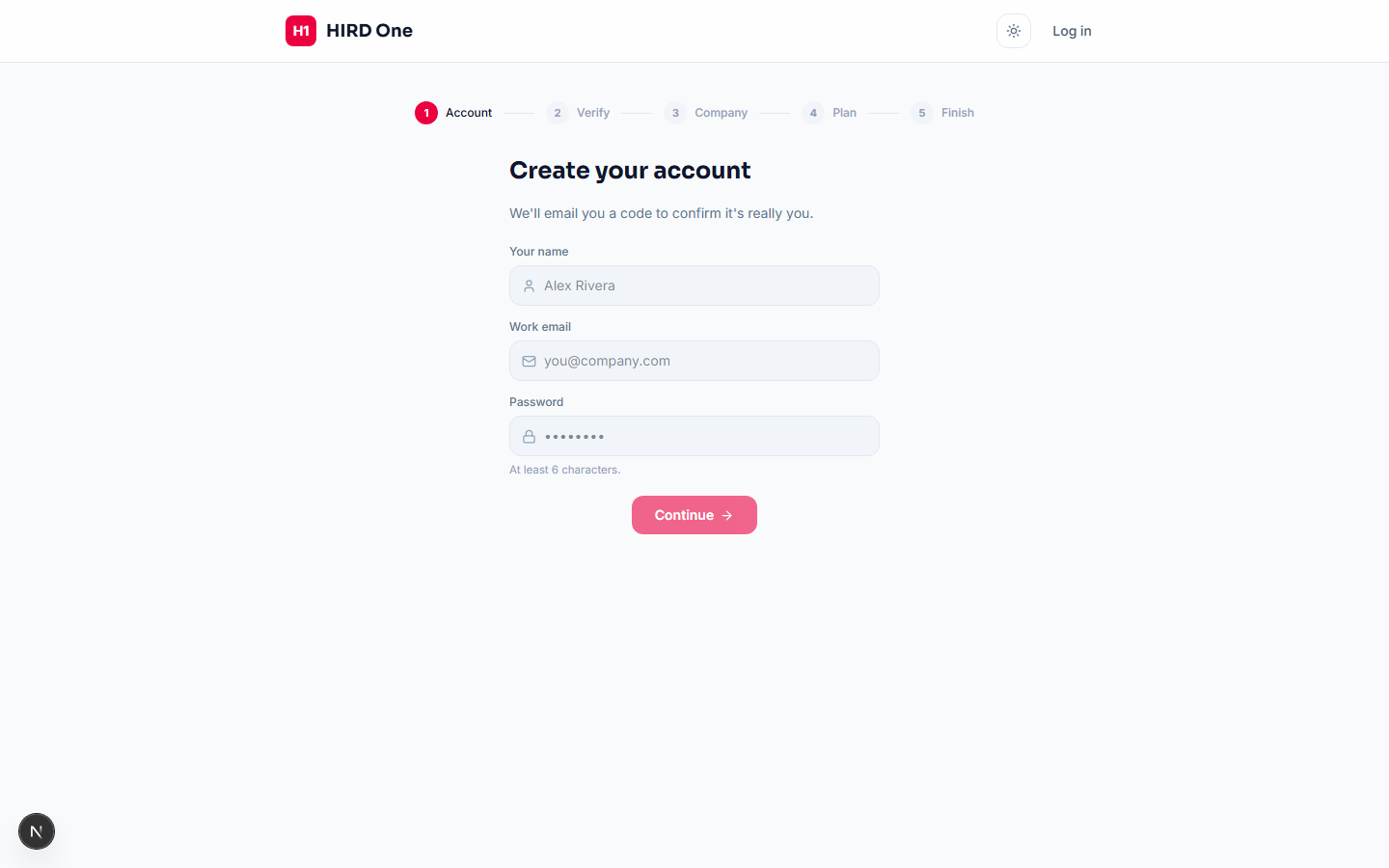
Go to /signup (or the "Create account" tab on the login page). You'll set a name, email and password, confirm the email with a 6-digit code, enter your company's name and full billing address, then pick a plan — every plan starts as a full 30-day trial with everything unlocked, regardless of which one you pick. Enterprise picks "Contact Sales" instead of paying immediately.
- 2
Sign in and take the guided tour
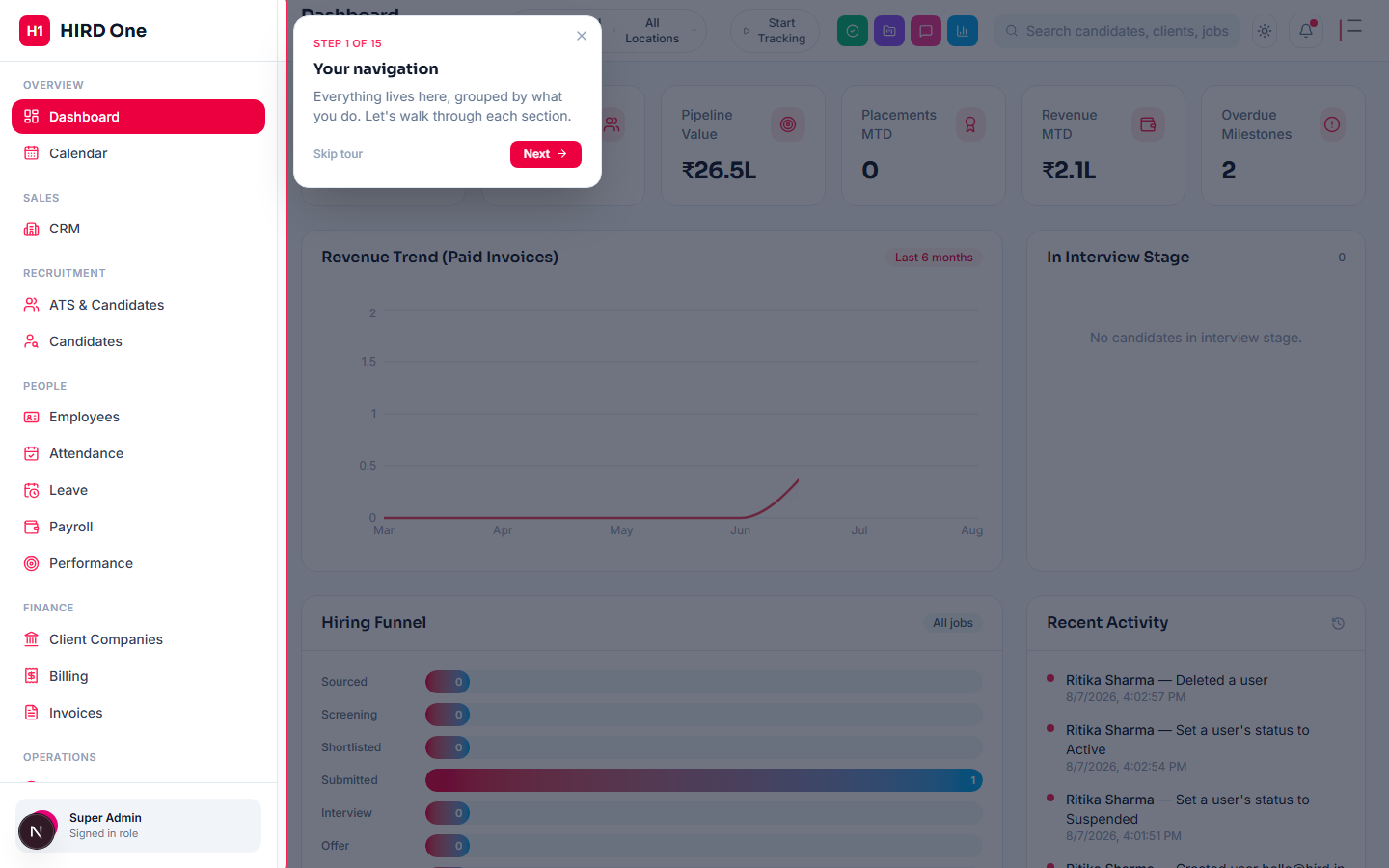
Your first login triggers a one-time guided tour covering every section your role can see — sidebar groups, search, notifications, quick actions and your account menu. Skip is always available, and it can be replayed later from Settings → "Restart tour".
- 3
Set up branches, roles and users
Under Access Control: add the countries and branch locations you operate from, review the six seeded system roles (or create custom ones with any combination of permissions), then add your team — each person gets an invite email with a setup link to set their own password. If email isn't connected yet, the setup link is shown to you directly to share yourself.
- 4
Connect your integrations
Under Settings → Integrations: connect email (SMTP), AI (Anthropic — powers resume scoring and drafting), WhatsApp, VOIP/Twilio calling, and eTimeOffice for biometric attendance sync. If you skip email or AI, the platform-wide default (set by your platform administrator) is used automatically until you connect your own.
- 5
Post your first job
From ATS & Jobs → Create Job Opening: title, client, location, openings, salary range, and either write the description yourself or generate a first draft with AI to edit. Assign one or more recruiters. Optionally link the job to a formal Client Company record so that company's own portal shows it automatically.
- 6
Build your candidate pipeline
Add candidates manually, or share your public application link (/apply/your-company-slug) so candidates can apply themselves — every self-application lands in the exact same pipeline recruiters already work from. Paste a resume to get an AI match score and reasoning against the job description.
- 7
Track attendance and leave
Attendance can be marked manually or synced automatically from a biometric device via the eTimeOffice integration (step 4). Leave requests route through a configurable approval chain from employee → manager → HR, with running balances and a per-country holiday calendar.
- 8
Run payroll
Set up salary structures with statutory deductions, generate payslips per cycle, and lock a payroll run once processed. Works the same whether the employee is on your own internal staff or managed on behalf of a client company.
- 9
Track delivery work with Projects
Projects are for the work itself, not just recruiting — internal delivery, client engagements, anything with tasks and a deadline. Create a project, work its board (or a fully custom set of status columns), plan sprints from the backlog, group related work into Epics, and set up Automation Rules so the board reacts on its own (notify, assign, or reprioritize) when a task changes status.
- 10
Invite a client to their portal (optional)
From Client Companies, invite a contact to a read-only Client Portal login — a separate identity from your internal team, scoped strictly to that one company's own jobs, candidate pipeline (name and stage only) and invoices.
- 11
Ongoing: reports and analytics
The Reports Gallery holds every report the app can generate — attendance, leave, payroll, recruiter targets and more — each downloadable as PDF or Excel. Analytics pulls the same real data into charts scoped to your own company: revenue, win rate, days-to-close, and pipeline health. Nothing here needs separate setup; it's live from the moment the modules above have data in them.
- 12
Secure your account
From your profile menu → Settings: turn on two-factor authentication (scan a QR code or enter the secret into any authenticator app), and review who has Super Admin — the app always keeps at least one, so you can't accidentally lock everyone out. Under Security, a dashboard shows 2FA adoption across your team and a live audit feed of everything happening in your account.